

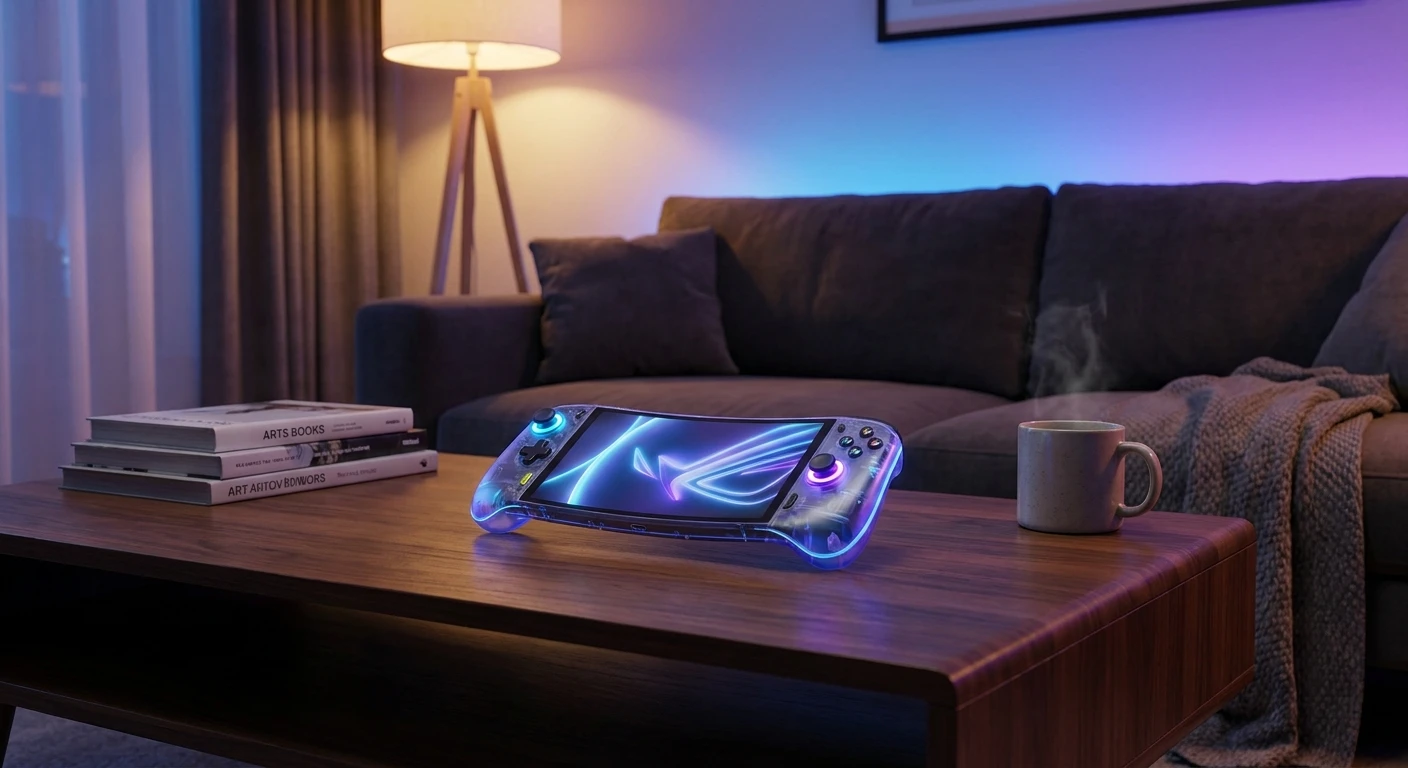
How to Dominate with Your playstation portal australia
If you are trying to figure out how to score a playstation portal australia without losing your mind, you are totally in the right place. Seriously, tracking down this piece of hardware has been a massive headache for gamers from Sydney to Perth, but once you finally have it in your hands, the hype absolutely makes sense. My cousin recently moved from Kyiv to Melbourne, and when I visited him last month, his apartment was packed with flatmates constantly hogging the main television. I brought my remote player along on the trip. Sitting on his balcony, streaming my PS5 library straight from the console while sipping a flat white was an unbelievable feeling. That is the core thesis of this guide: this device is not just a secondary screen, it is a complete lifestyle upgrade for anyone who has to share their living space.
You no longer have to fight for the main screen in your living room, and you certainly do not have to compromise on the DualSense controller features that make modern gaming so incredibly immersive. We are going to walk through exactly how to set up your home network, optimize your connection for the best possible frame rates, and completely eliminate those annoying lag spikes that ruin a good gaming session.
Understanding exactly how the device functions on a local network is critical to getting the best out of it. Most people think it just grabs games from the internet, but it actually creates a direct digital bridge to your console at home. The value proposition here is massive. First, picture yourself playing Helldivers 2 in bed while your partner watches their favorite show on the big screen. Second, imagine taking the device out to your backyard patio in Brisbane, catching a cool breeze while finishing a grueling boss fight in Elden Ring. The freedom is unmatched. But to achieve that flawless stream, you absolutely need your home network to be properly configured.
| NBN Connection Tier | Expected Streaming Quality | Why This Matters for You |
|---|---|---|
| NBN 50 (Standard) | Good for local home network, struggles remotely | Your upload speed caps at 20Mbps, causing stutter outside the house. |
| NBN 100 (Fast) | Excellent local, solid remote play | With up to 40Mbps upload, external streaming is smooth and stable. |
| NBN 250+ (Superfast) | Flawless local and remote 1080p/60fps | Maximum data overhead ensures zero pixelation during fast-moving scenes. |
To really lock in that crisp 1080p resolution at a buttery 60 frames per second, you need to follow these three crucial network steps:
- Plug your PS5 console directly into your router using a high-quality Cat6 Ethernet cable, completely avoiding Wi-Fi for the console itself.
- Separate your home Wi-Fi bands, naming your 5GHz network something distinct so you know exactly what your handheld is connecting to.
- Move any large metal obstacles or dense furniture away from your router to give the signal a clear line of sight to where you usually play.
The Origins of Remote Play
The concept of beaming your console games to a handheld screen is not exactly a brand new idea cooked up overnight. Sony actually started experimenting with this technology way back during the PlayStation 3 era. If you were a hardcore fan back then, you probably remember trying to connect a PlayStation Portable (PSP) to your PS3 to play a handful of compatible titles. It was a neat parlor trick, but the technology just was not there yet. The network speeds were too slow, the video compression was brutal, and the controls on the PSP lacked the necessary buttons like the L2 and R2 triggers.
Evolution of Sony’s Handhelds
Next came the PlayStation Vita and the PlayStation 4. This was a massive leap forward. The Vita had a beautiful screen and dual analog sticks, making it much more capable of playing full console titles. However, the Vita still lacked full shoulder buttons, forcing players to use an awkward rear touchpad to simulate triggers. Furthermore, home Wi-Fi networks were generally still running on older, easily congested protocols. While it worked decently for slow-paced RPGs, fast action games suffered from noticeable input delay and frequent disconnects, leaving gamers frustrated.
Modern State of Handheld Streaming
Now that we are solidly in 2026, the landscape of home networking and dedicated hardware has completely shifted. The current generation of the Portal drops the idea of processing games natively on the handheld altogether. Instead, it acts purely as a high-end receiver. By stripping out the heavy computing processors and focusing entirely on video decoding and Wi-Fi reception, Sony created a remarkably lightweight device. It perfectly mirrors the exact feel of a DualSense controller because it literally is a DualSense controller split in half with a gorgeous 8-inch LCD screen fused in the middle.
Understanding the Wi-Fi Protocol Matrix
When you start looking at the actual science behind how this device throws gigabytes of data across your house without noticeable delay, it gets super interesting. The system relies heavily on your router’s ability to manage multiple streams of data simultaneously. Think of your Wi-Fi router as a traffic cop. If you have an older router, the cop can only let one car through an intersection at a time. This causes a massive traffic jam of data, which you experience as lag. Modern routers using Wi-Fi 5 or Wi-Fi 6 can direct dozens of cars at exactly the same time. This keeps the data packets carrying your game’s video and audio flowing continuously.
Screen Latency and Bitrate Mechanics
Latency is the absolute enemy of gaming. It is the tiny fraction of a second between you pushing the jump button and the character on screen actually jumping. The Portal uses a highly specialized video decoder chip that unpacks the video feed from your console in mere milliseconds. By maintaining a high, consistent bitrate—which is the amount of data transmitted per second—the picture remains sharp even when the camera pans quickly. Here are some of the raw technical facts about the hardware:
- The 8-inch LCD screen runs at a native 1920×1080 resolution at 60Hz.
- It utilizes standard Wi-Fi 5 (802.11ac) to maintain compatibility with a vast majority of home routers.
- The internal battery uses advanced lithium-ion chemistry to power both the bright display and the heavy haptic feedback motors.
- The total weight sits comfortably at around 530 grams, perfectly balanced to prevent wrist fatigue.
Step 1: Secure the Hardware
Getting your hands on the console is step one. Keep a close eye on local Australian retailers like JB Hi-Fi, EB Games, and Amazon AU. Stock drops happen sporadically, so setting up Twitter alerts or using stock-tracking Discord servers is your best bet to beat the scalpers.
Step 2: Optimize Your NBN Connection
Before turning the device on, check your home internet. While local play doesn’t use your NBN data, if you plan to play at a café or a mate’s place, your home upload speed dictates the quality. Aim for an NBN plan that offers at least 20Mbps upload speed, though 40Mbps will guarantee a flawless experience.
Step 3: Configure Your PS5 Network Settings
Boot up your PS5, head into the Network settings, and ensure it is connected via a physical Ethernet cable. Then, navigate to System > Remote Play and toggle the “Enable Remote Play” switch to the ON position. You also need to allow the console to turn on from the network while in Rest Mode.
Step 4: The Initial Pairing Process
Turn on your new handheld device and follow the on-screen prompts to connect it to your 5GHz Wi-Fi network. Log into your PlayStation Network account. The device will automatically search your local network and sync up with your main console. The first connection usually takes about a minute.
Step 5: Tweak the Haptic Feedback Limits
Out of the box, the haptic feedback and adaptive triggers are set to maximum. While this feels incredible, it drains the battery incredibly fast. Jump into the handheld’s settings and lower the trigger effect intensity and vibration slightly to easily add an extra hour or two to your battery life.
Step 6: Test with a Low-Latency Game First
Do not immediately jump into a highly competitive multiplayer shooter. Test your network stability by playing something single-player and platform-based, like Astro’s Playroom. This lets you feel out the latency, adjust your router antennas if necessary, and ensure the stream is not dropping frames.
Step 7: Invest in the Right Accessories
Because the screen is massive and prone to scratches, immediately buy a high-quality tempered glass screen protector. Additionally, since the device lacks standard Bluetooth audio, you will want to grab a pair of PlayStation Explore earbuds or a compatible wired headset that plugs directly into the 3.5mm jack.
There is a lot of misinformation floating around social media regarding this hardware. Let’s clear up some of the biggest misunderstandings right now.
Myth: You need insanely fast, expensive NBN internet to use the device at home.
Reality: If you are playing inside your own house, the device only uses your internal Wi-Fi router. Your actual ISP speed from the street does not matter at all for local streaming.
Myth: You can easily play it on a moving train using a mobile phone hotspot.
Reality: While it is technically possible, mobile networks constantly switch cell towers, introducing terrible jitter and lag. It is designed for stable, stationary Wi-Fi connections.
Myth: It works exactly like a Nintendo Switch or Steam Deck.
Reality: The device has zero ability to play games natively. If you do not have an active PS5 console turned on (or in Rest Mode) somewhere else, the device is basically a very pretty paperweight.
Myth: Any Bluetooth headphones will connect to it easily.
Reality: Sony intentionally left out standard Bluetooth to push their proprietary PlayStation Link technology, meaning you either need specific Sony headsets or you have to use an old-school wired pair.
Is it available in retail stores locally?
Yes, though stock fluctuates constantly. Major retailers like Big W, JB Hi-Fi, and EB Games occasionally get shipments, but buying directly from Sony’s official online store often yields faster results.
Can I play outside my house?
Absolutely, provided the Wi-Fi connection you are using has a stable download speed of at least 15Mbps, and your home console has a solid upload connection.
Does it support standard Bluetooth audio?
No, it requires headsets that support PlayStation Link technology, or you can simply plug any standard wired headphones into the 3.5mm audio jack located at the bottom.
How long does the battery typically last?
Depending on screen brightness, volume, and how aggressively a game uses the haptic motors, you can expect anywhere from 4 to roughly 7 hours of continuous gameplay.
Can I stream Netflix or YouTube on it?
No, media applications are entirely blocked during Remote Play due to strict copyright and DRM protections. It is strictly a dedicated gaming device.
Does it work with my old PS4?
No, this piece of hardware was designed from the ground up exclusively to interface with the PlayStation 5 console ecosystem.
Do I need an active PlayStation Plus subscription?
Only if you intend to play online multiplayer games. You can play all your single-player titles remotely without paying a single cent for subscriptions.
Ultimately, securing your playstation portal australia in 2026 is one of the smartest investments you can make for your gaming setup. It liberates your TV, keeps you close to your family, and delivers an uncompromised DualSense experience right in the palms of your hands. Take the time to hardwire your console, split those Wi-Fi bands, and enjoy the absolute peak of modern remote streaming. Ready to upgrade your gaming life? Go check your local stock right now and grab yours today!





Leave a Reply