

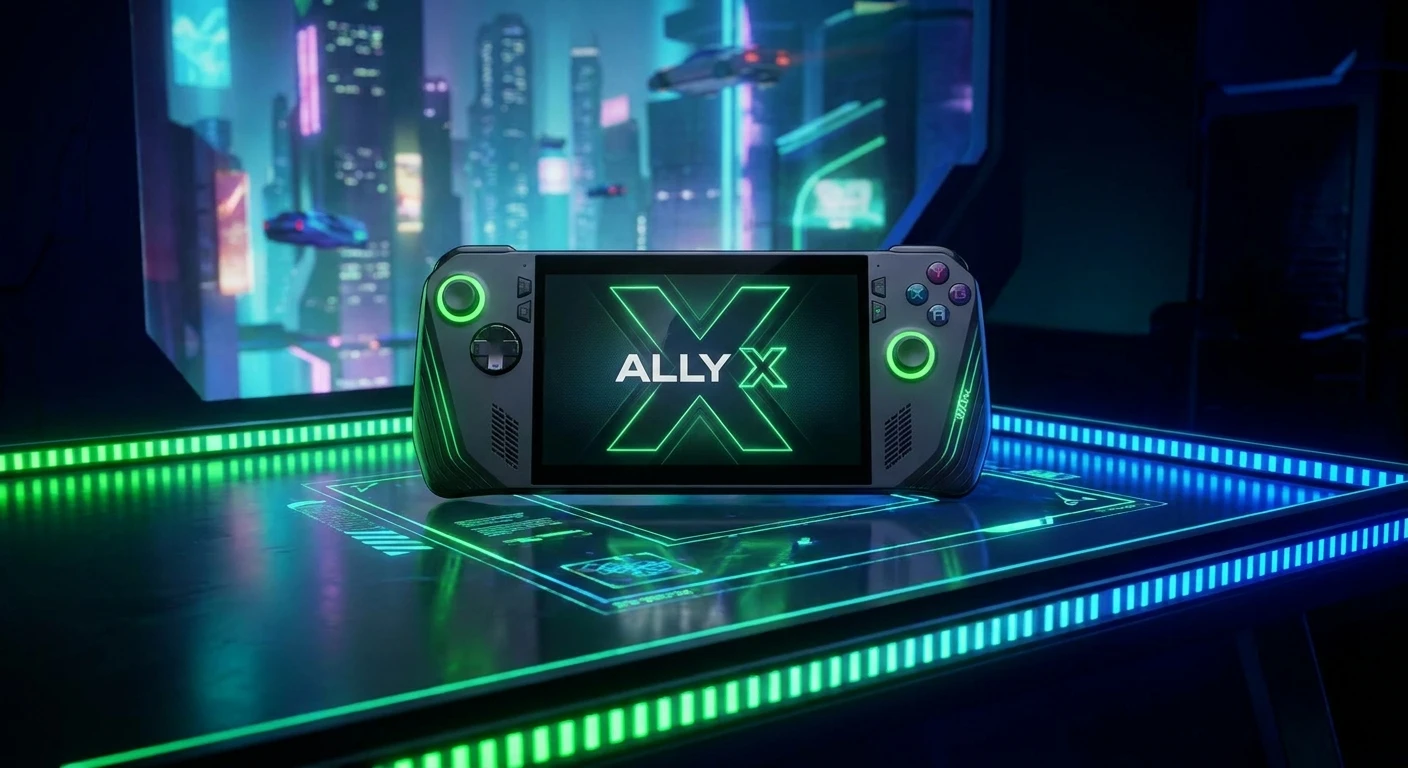
Xbox Ally X: Redefining Portable Gaming
The Xbox Ally X is completely changing how gamers approach handheld performance on the go. You know that feeling when you finally pick up a piece of hardware that actually lives up to the massive hype surrounding it? That is exactly what happens when you boot up this incredible console. For years, gamers have been asking for a true, no-compromise portable machine that integrates seamlessly with their existing gaming libraries, and this device answers that call loudly and clearly. It brings desktop-tier gaming right into the palms of your hands, combining a massive game library with cutting-edge internal architecture. We are going to break down exactly why this device dominates the current hardware market, how its internal components push the boundaries of portable computing, and what specific steps you need to take to get the absolute most out of your setup.
Instead of relying purely on cloud streaming or severely downgraded ports, this machine renders high-fidelity graphics natively. Whether you are lying on the couch, commuting on a train, or taking a break at the office, the ability to launch massive AAA titles instantly is a game-changer. The seamless sync with your existing game profile means your cloud saves, achievements, and friends list follow you everywhere. Let us dive deep into the mechanics, history, and optimization of this remarkable handheld.
Read also: Backbone Xbox Review: Unleash Console Gaming Anywhere; Ultimate NVIDIA 50 Series Hardware Guide.
Core Benefits and Optimal Usage
Understanding the value proposition of this device requires looking at how it stands against traditional setups. The main draw here is entirely about uncompromising power combined with true portability. You no longer have to choose between a bulky gaming laptop and an underpowered mobile device. The true magic happens when you leverage the built-in software ecosystem to balance power draw and graphical fidelity.
Consider two real-world examples. Example one: you are on a long-haul flight with no reliable internet. Because the system allows for native downloads and offline play, you can easily load up massive open-world RPGs and play for hours without dropping a single frame, provided you have tweaked your battery profiles. Example two: you arrive at a hotel, plug the device into an external display dock, connect a wireless controller, and suddenly you have a full desktop gaming rig ready to run competitive multiplayer games on the big screen.
| Feature Category | Standard Handhelds | Xbox Ally X |
|---|---|---|
| Processing Power | Mobile-tier ARM chips | Custom AMD APU architecture |
| Library Access | Walled garden storefronts | Full native Windows & Game Pass access |
| Battery Customization | Locked power profiles | Fully customizable TDP wattage sliders |
To truly maximize your experience, you need to master a few core settings right out of the box. Follow these essential steps to get your system running perfectly:
- Maximize TDP profiles: Adjust your Thermal Design Power (TDP) based on the game you are playing. Set it to 10W for simple indie games to save battery, and crank it to 30W when plugged into the wall for demanding 3D titles.
- Manage VRAM allocation: Head into the system software and manually assign at least 6GB to 8GB of unified memory to the GPU. This prevents stuttering in texture-heavy modern releases.
- Utilize frame generation tools: Turn on built-in upscaling technologies like AMD FidelityFX Super Resolution (FSR) to render games at a lower internal resolution while outputting a crisp image to the screen, drastically improving frame rates.
Origins of Handheld Gaming
The journey to the current state of portable gaming is a fascinating study in technological persistence. In the late 1980s and early 1990s, the market was dominated by simple 8-bit devices with monochrome screens. These early gadgets proved that gamers wanted to take their favorite hobby on the road, even if it meant carrying dozens of AA batteries and struggling to see the screen in low light. Throughout the 2000s, portable consoles gained color screens, rechargeable lithium-ion batteries, and 3D graphics, but they remained strictly separated from home console and PC ecosystems. You had to buy entirely different versions of games for your handheld.
Evolution of Portable PC Architecture
The real shift began when engineers started shrinking traditional x86 PC architecture down to a mobile form factor. Early attempts were incredibly bulky, suffered from terrible battery life, and generated uncomfortable amounts of heat. However, the push for smaller silicon fabrication processes led to a breakthrough. By combining the central processor and graphics processor into a single APU (Accelerated Processing Unit), manufacturers could deliver desktop-like performance in a chassis less than an inch thick. This evolution paved the way for modern devices to run standard desktop operating systems rather than restricted mobile software.
Modern State of the Xbox Ally X Ecosystem
Today, the hardware landscape has matured beautifully. The Xbox Ally X represents the pinnacle of this evolutionary branch. It benefits from years of iterative software updates, improved driver stability, and highly refined ergonomics. Microsoft and their hardware partners have optimized the operating system specifically for touchscreens and dual-joystick navigation, ensuring that you spend less time fighting menus and more time actually playing games. The integration of robust subscription services means your library is instantly populated with hundreds of top-tier titles the moment you log in.
APU Architecture Explained Simply
At the heart of this portable powerhouse is a highly customized Accelerated Processing Unit. In a standard computer, the Central Processing Unit (CPU) and Graphics Processing Unit (GPU) are usually two completely separate chips located on different parts of the motherboard. An APU combines both of these vital components onto a single die. This means they can share the exact same pool of ultra-fast memory, drastically reducing latency and the physical space required on the board. The CPU handles game logic, physics, and background operating system tasks, while the integrated RDNA graphics architecture calculates the lighting, textures, and geometry you see on the screen simultaneously.
Thermal Management and Vapor Chambers
Generating that much processing power in a small plastic shell creates a significant physical challenge: heat. To prevent the silicon from literally melting, the device employs an advanced thermal management system centered around a custom vapor chamber. Unlike standard copper heat pipes that only transfer heat in a linear direction, a vapor chamber is a flat, vacuum-sealed metal plate containing a tiny amount of liquid coolant. When the APU gets hot, this liquid rapidly turns into vapor, spreads evenly across the entire chamber, cools down via the dual-fan exhaust, and condenses back into liquid to repeat the cycle.
- Silicon Fabrication: The chips inside utilize a cutting-edge 4-nanometer manufacturing process, allowing billions of transistors to be packed into a space the size of a postage stamp for maximum electrical efficiency.
- Thermal Conductivity: The dual fans feature fluid dynamic bearings and ultra-thin liquid crystal polymer blades to move massive amounts of air quietly over the copper fin stacks.
- Battery Cell Chemistry: High-density lithium-polymer cells provide a higher capacity in a smaller footprint compared to traditional cylindrical lithium-ion batteries, maximizing runtime without adding excessive weight.
Day 1: Unboxing and Initial OS Setup
When you first take the device out of the box, plug it directly into the wall using the included fast charger. Turn it on and go through the standard Windows setup process. Let all the system updates, BIOS flashes, and driver installations complete fully before you even think about installing a game. This ensures maximum stability.
Day 2: Syncing Game Pass and Cloud Saves
Open the native gaming application and log into your primary account. Navigate to your library and let the system index your available titles. Download two or three games you are currently playing on your main console to verify that your cloud saves sync perfectly. Test launching a game to ensure your progress carries over.
Day 3: Customizing Control Mapping and Deadzones
Every gamer has different hands. Head into the built-in control center overlay and adjust the joystick deadzones to your liking. If you play first-person shooters, you might want to tighten the outer threshold for faster aiming. Map the rear paddles to standard face buttons like jump or crouch so you never have to take your thumbs off the sticks.
Day 4: Thermal Profiling and Fan Curves
Learn how to control the heat. Go into the system software and create a custom fan curve for your most demanding games. You can instruct the fans to spin up aggressively once the APU hits 70 degrees Celsius. This keeps your hands cool and prevents the internal hardware from thermal throttling during intense boss fights.
Day 5: Storage Expansion and MicroSD Integration
Modern games are massive, and you will eventually run out of internal storage. Purchase a high-speed, A2-rated MicroSD card and format it specifically for game storage. Alternatively, if you are comfortable with screwdrivers, clone your operating system and upgrade the internal NVMe SSD to a 2TB drive for maximum read and write speeds.
Day 6: Connecting External Displays and Docks
Expand your horizon by purchasing a third-party USB-C dock with HDMI output and power delivery. Connect the dock to your television, pair a Bluetooth controller to the console, and configure Windows to output at 1080p or 1440p. Now you have a highly capable home console living room setup running off your handheld.
Day 7: Testing Heavy AAA Titles and Benchmarking
Push the hardware to its absolute limits. Download a notoriously demanding game, set your power profile to maximum, and use the built-in performance overlay to monitor your frame rate, CPU usage, and temperatures. Tweak the in-game shadow and texture settings until you hit a perfectly locked and stable 60 frames per second.
Myths and Reality
Myth: The battery lasts barely an hour, making it useless for travel.
Reality: If you run heavy AAA games at maximum brightness and maximum wattage, the battery drains quickly. However, by capping the frame rate to 45fps and lowering the TDP to 15W, you can easily get several hours of uninterrupted playtime on lighter titles.
Myth: It is just a cloud streaming device that requires constant Wi-Fi.
Reality: This is a fully functional PC. All processing is done locally on the internal hardware, meaning you can play your entire downloaded library completely offline.
Myth: You cannot repair it yourself if something breaks.
Reality: The device is designed with modularity in mind. The back shell is easily removed, and components like the joysticks, battery, and SSD can be replaced with standard tools and readily available replacement parts.
Myth: Stick drift is inevitable within a few months.
Reality: The implementation of high-quality potentiometers and the option to upgrade to Hall-effect electromagnetic joysticks drastically reduces the physical wear and tear that causes traditional stick drift.
Does it support external GPUs?
Yes, depending on the specific model and port configuration, you can connect an external graphics processing unit via a high-speed USB4 or proprietary connector to boost frame rates when docked at a desk.
Can I run non-gaming software?
Absolutely. Because it runs a full desktop operating system under the hood, you can connect a keyboard and mouse to browse the web, edit videos, write documents, or run any standard desktop application.
Is the storage easily upgradeable?
Yes, the internal M.2 2280 NVMe SSD is highly accessible. By removing the back cover, you can easily swap out the stock drive for a much larger one in just a few minutes.
What is the maximum screen refresh rate?
The built-in display features a native 120Hz refresh rate. This provides incredibly fluid motion, which is especially noticeable in fast-paced competitive games and platformers.
Do standard Bluetooth headsets work?
Yes, the device features a standard Bluetooth radio, allowing you to connect any wireless earbuds, headsets, or speakers just like you would with a regular laptop or smartphone.
How heavy is the console?
Despite packing serious hardware and a large battery, it is ergonomically balanced and weighs just over 600 grams, making it comfortable to hold for extended gaming sessions without causing wrist fatigue.
Can I play offline?
Yes, as long as you have downloaded the games to your internal storage and logged into the respective launchers at least once to authenticate your licenses, you can play entirely without an internet connection.
Conclusion: Take Control of Your Portable Library
The Xbox Ally X completely redefines what we expect from mobile hardware. It bridges the gap between high-end desktop fidelity and the convenience of a traditional handheld. By understanding the APU architecture, managing your power profiles, and customizing your controls, you unlock a gaming experience that was literally science fiction just a decade ago. If you want to elevate your daily commute or just want the freedom to play anywhere in your house, grab your device, tweak those settings, and start building your ultimate portable library today.





Leave a Reply